
First, how to add a picture.
Click on the little icon for a picture.
Select "from location" and copy the address where the
picture is stored on your webspace.
Select ok and you will have a picture.
Next, if you want to link the picture
(either to a larger image, or another page)
Double click the picture and you will get this box.
In the location box, enter the web address of the picture or page
you want to link to.
Click ok. Now you have a linked picture.

Now, lets say you want to have a border
around it to help show it is linked, or just to set it off from
the page a little.
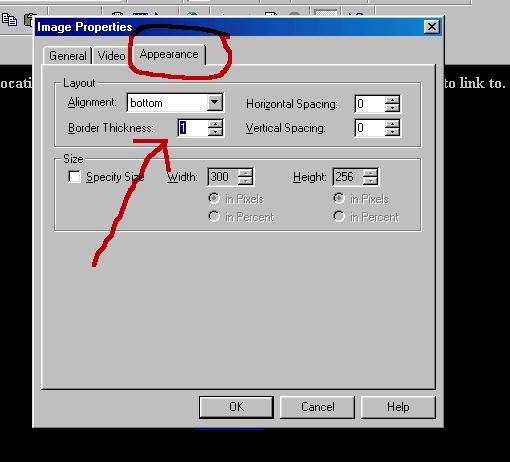
Double click the picture again.
Then select the [apperance] tab.
It will now look like the image below.
Select the [border thickness].
I usually stick with 1 or 2, but you can play with it and see
what you like.
The image below has a boarder thickness of 1 and is the same
color as what I have specified for links.
One last thing.
How to make text links.
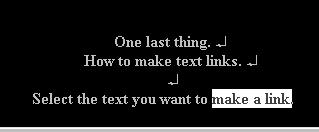
Select the text you want to make a link.
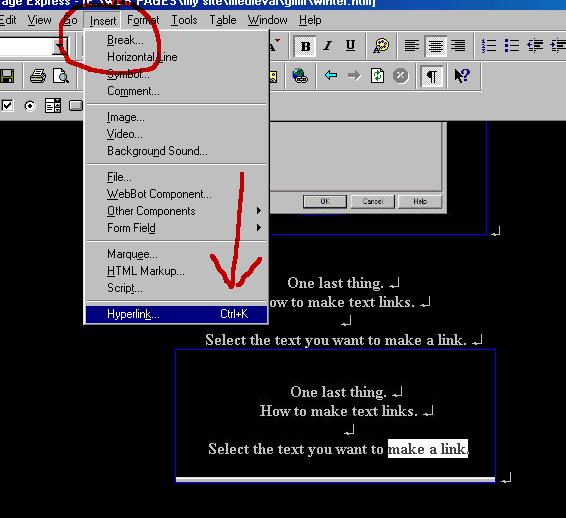
Click the "instert" button.
Go down to "hyperlink"
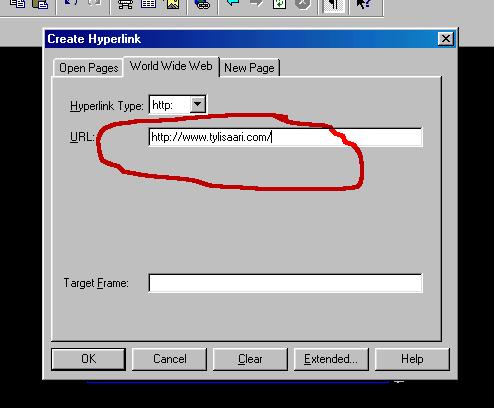
Put in the address of the image or page
that you want the text to link to.
And when you are done,
it will look like this.